

GetResponse
Connect GetResponse so approved affiliates land in a campaign (mailing list) automatically.

Rekomi's GetResponse integration adds every approved affiliate to a GetResponse campaign (their term for a mailing list).
What this connection does and does not do. It syncs affiliates into GetResponse. It does not track sales, including anything sold through GetResponse landing pages or its store. To credit affiliates for those, connect the payment gateway behind them under Setup and install the Rekomi script where affiliate links land (see the install guides).
What syncs
When an affiliate is approved (or, optionally, when they apply), Rekomi calls POST /v3/contacts with email, single concatenated name, the campaign ID, and an array of resolved tag IDs.
GetResponse returns 202 Accepted when the contact is queued. For campaigns with single opt-in (the default for affiliate-marketing) the contact lands immediately. Campaigns with double opt-in wait for the affiliate to click a confirmation email. Re-syncing an existing email returns 409 with code 1008; Rekomi treats this as success.
Finding your API key
In GetResponse:
- Open https://app.getresponse.com/api
- Click Generate API Key, name it "Rekomi".
- Copy the key.
Important: GetResponse silently expires API keys after 90 days of non-use. If your Rekomi → GetResponse sync stops working after a long gap, regenerate the key and reconnect.
Connecting GetResponse in Rekomi
- Go to Integrations in the dashboard sidebar.
- Click the GetResponse card.
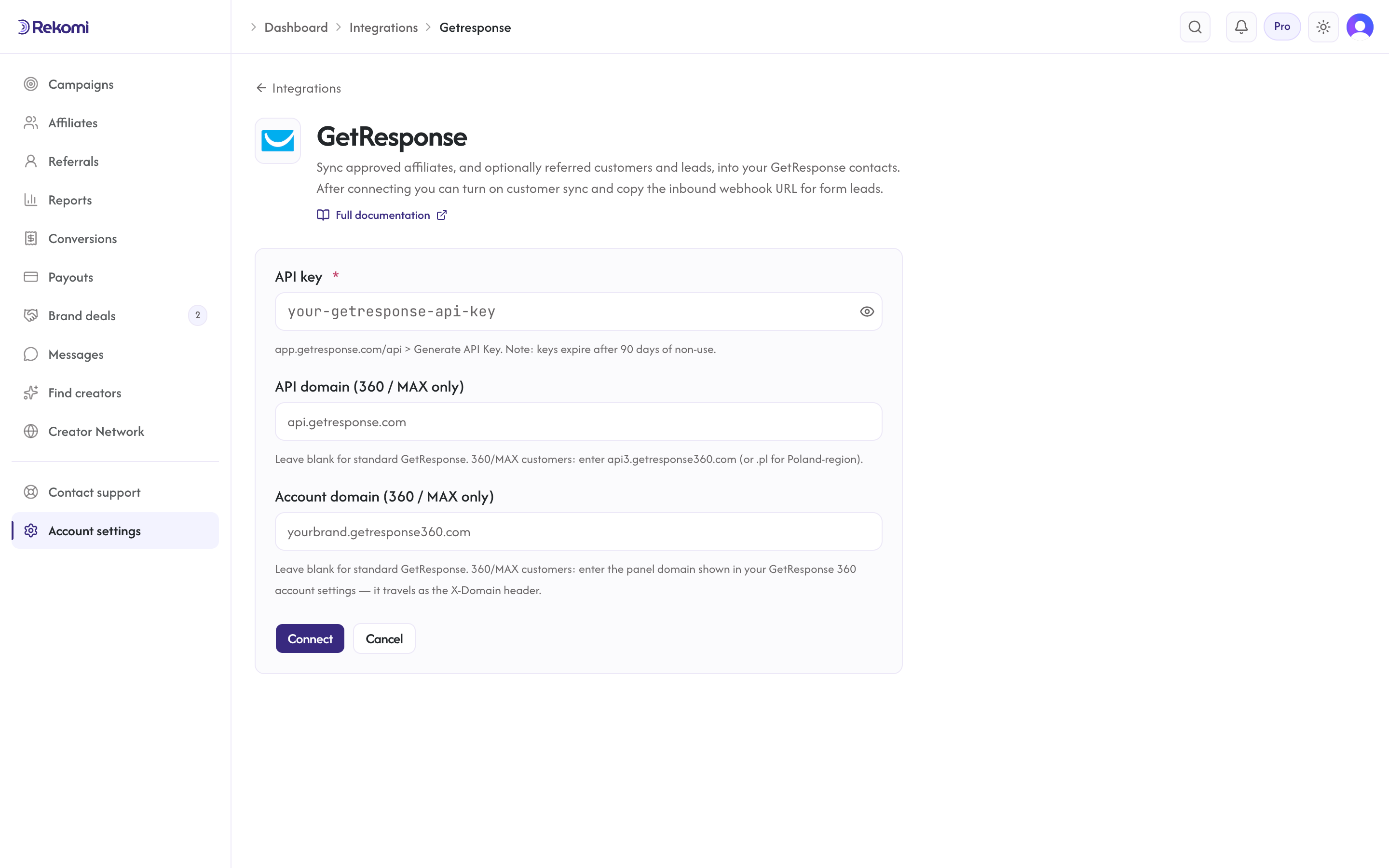
- Paste your API key. Click Connect.
- Rekomi runs a test call against
GET /v3/accounts. - Pick a default campaign.
On GetResponse 360 / MAX? Standard GetResponse accounts can leave the two extra fields blank. Enterprise 360/MAX brands run on a separate data center and must fill them in: set API domain (360 / MAX only) to api3.getresponse360.com (or api3.getresponse360.pl for the Poland region), and set Account domain (360 / MAX only) to the panel domain shown in your GetResponse 360 account settings. Rekomi sends that account domain as the required X-Domain header on every call.
Tags
GetResponse tag names must match ^[_a-zA-Z0-9]{2,64}$, letters, digits, underscores only, 2-64 chars. Rekomi normalizes your tag names to that grammar instead of dropping them: spaces and hyphens become underscores, so Rekomi affiliate arrives in GetResponse as Rekomi_affiliate. Names that still don't fit after normalization (too short, too long, or other disallowed characters) are skipped.
Each normalized tag is resolved via GET /tags?query[name]= (exact match). If missing, Rekomi creates it via POST /tags. The resolved tag IDs are attached inline on the subscribe call. When the contact already exists (the 409/1008 duplicate case), Rekomi looks the contact up by email and attaches the tags to the existing contact instead, best-effort.
Referred customers and leads (optional)
Turn on Sync referred customers and leads on the integration page and every sale or lead Rekomi attributes to an affiliate is written to GetResponse as well, matched on email so existing contacts are updated, not duplicated. Each one carries:
- custom fields
rekomi_referral_link,rekomi_campaign,rekomi_referring_affiliate,rekomi_referring_affiliate_code,rekomi_last_event,rekomi_last_sale_amount, created on first use - tags
Rekomi customerorRekomi lead - Affiliates synced by the section above also get
Rekomi referral link,Rekomi campaignandRekomi affiliate statusin the same fields, so you can merge a partner's link into your emails.
Refunded, denied and fraud-quarantined conversions are never pushed, and imported historical conversions are skipped. It is off by default.
When sync fires
- Default: only
Approvedaffiliates sync. - Optional: turn on "Include applicants before approval" to also sync
Pending.
Per-campaign overrides
Each campaign can override the account-level configuration. From a campaign's detail page, open the Settings tab and scroll to the CRM sync for this campaign section.
Per-affiliate sync visibility
Open any affiliate's detail page. The CRM sync panel shows the per-CRM status. Resync clears prior jobs and re-fires the sync.
Troubleshooting
- 401 Unauthorized, API key invalid OR expired (90-day non-use timer). Regenerate and reconnect. Rekomi also marks the integration "action needed" and emails you a reconnect prompt once per breakage; after reconnecting, use Resync all on the Failed tile of the integration page.
http_409 ... 1008, Treated as success (duplicate-contact idempotency).- 429, GetResponse throttles at 80 req/sec, 30000/10min. Rekomi honors
X-RateLimit-Reset(seconds-to-reset) when present. - Contact in queue but not visible, GetResponse 202 may indicate single opt-in queued or double opt-in awaiting confirmation. Check the campaign's confirmation settings.
Disconnecting
From the GetResponse connect page, click Disconnect. Integration row + per-campaign overrides are deleted. Sync history is preserved.
See the getresponse integration overview on the marketing site for use-cases, persona fit, and unique automation patterns.
Brevo
Connect Brevo (formerly Sendinblue) so approved affiliates land in a contact list automatically.
GoHighLevel
Connect GoHighLevel (HighLevel) once and it does two jobs. Affiliates, referred customers and leads land in your sub-account as contacts with the referring affiliate on the record, and sales are credited to the affiliate whose link brought the contact, with a workflow webhook for one-time order forms and non-Stripe gateways.