

Mailchimp
Connect Mailchimp so approved affiliates land in a Mailchimp audience automatically, with tags.

Rekomi's Mailchimp integration subscribes every approved affiliate to a Mailchimp audience you pick. Optional tags are applied to every synced subscriber so you can identify Rekomi-originated contacts in your Mailchimp dashboard.
What syncs
When an affiliate is approved (or, optionally, when they apply), Rekomi sends Mailchimp:
email_address(the affiliate's email)merge_fields.FNAME(first name, split from full name)merge_fields.LNAME(last name, split from full name)status_if_new = "subscribed"(the affiliate is added as Subscribed if they're new; if they already exist in Mailchimp at any status, that status is left alone)- Tags (the "Rekomi affiliate" system tag plus any defaults you configure, plus per-campaign extras)
Mailchimp's API upserts on MD5(lower(email)), so re-syncing the same affiliate never creates a duplicate.
Finding your API key
In Mailchimp:
- Click your account avatar in the top right, then Account & billing.
- Open Extras → API keys.
- Click Create A Key. Name it something like "Rekomi".
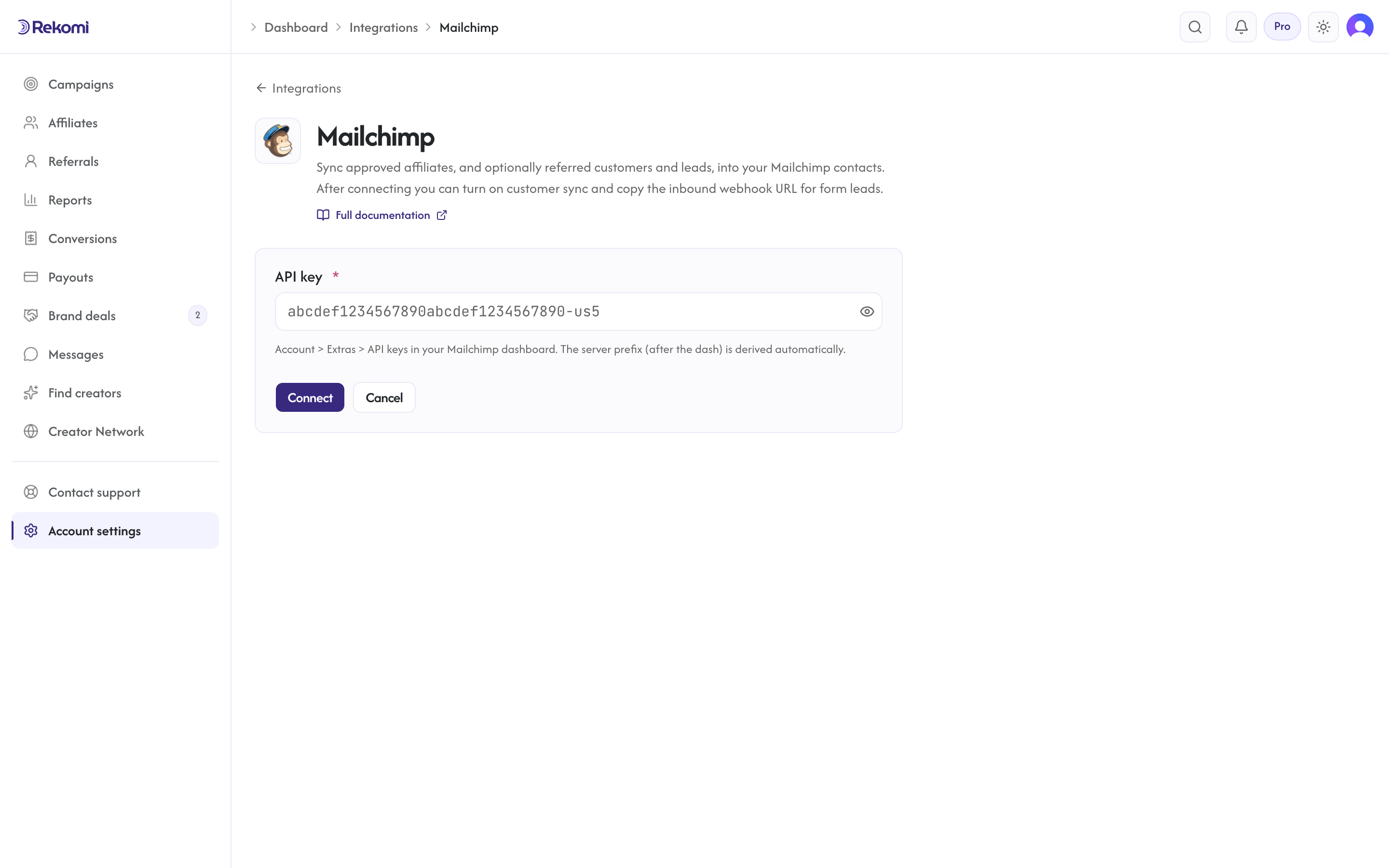
- Copy the generated key. It looks like
abcdef1234567890abcdef1234567890-us5.
The trailing piece after the dash (-us5) is your data-center prefix. Rekomi extracts it automatically, never paste it separately or strip it.
Connecting Mailchimp in Rekomi
- Go to Integrations in the dashboard sidebar.
- Click the Mailchimp card.
- Paste your API key. Click Connect.
- Rekomi runs a test call against
GET /3.0/to verify the key. If anything's off (invalid key, missing data center suffix), the form rejects it with the actual Mailchimp error so you know what to fix. - Once connected, pick a default audience from the Audience dropdown. The list is fetched from your Mailchimp account in real time; click the refresh button after creating a new audience in Mailchimp.
Tags
Optional. Comma-separated. Rekomi always adds the system tag Rekomi affiliate so you can build segments in Mailchimp filtered on "Rekomi-sourced contacts". Tags are applied via Mailchimp's dedicated /3.0/lists/{list}/members/{hash}/tags endpoint after the contact is created or updated.
Referred customers and leads (optional)
Turn on Sync referred customers and leads on the integration page and every sale or lead Rekomi attributes to an affiliate is written to Mailchimp as well, matched on email so existing contacts are updated, not duplicated. Each one carries:
- audience merge fields
RK_REFLINK,RK_CAMP,RK_REFAFF,RK_REFCODE,RK_EVENT,RK_AMOUNT(plus slug and email variants), created on the audience on first use - tags
Rekomi customerorRekomi lead - Affiliates synced by the section above also get
Rekomi referral link,Rekomi campaignandRekomi affiliate statusin the same fields, so you can merge a partner's link into your emails.
Refunded, denied and fraud-quarantined conversions are never pushed, and imported historical conversions are skipped. It is off by default.
When sync fires
- Default: only
Approvedaffiliates sync. The job fires the moment an affiliate is approved (manual approve, bulk approve, or auto-approve on a campaign withautoApprove=true). - Optional: turn on "Include applicants before approval" on the provider's settings card to also sync
Pendingaffiliates the moment they apply. Use this if you want your Mailchimp drip to start nurturing applicants before you've reviewed their application.
Per-campaign overrides
Each campaign can override the account-level configuration. From a campaign's detail page, open the Settings tab and scroll to "CRM sync for this campaign" to:
- Disable Mailchimp for this campaign (skip the sync entirely for affiliates approved on this campaign).
- Send this campaign's affiliates to a different audience.
- Add campaign-specific tags on top of the account defaults.
Overrides don't change the worker's other guarantees (idempotency, retry, etc.), they just rewrite the target.
Per-affiliate sync visibility
Open any affiliate's detail page. Above the tabs, the CRM sync panel shows the per-CRM sync status for that affiliate:
- Succeeded: the contact is in Mailchimp.
- Failed: the Mailchimp API rejected the request. The full error reason is displayed.
- Skipped: pre-condition not met (e.g., no list configured, integration disabled).
- Pending / Retrying: in flight.
- Not synced: no job has been enqueued for this affiliate yet.
The Resync button on the panel clears prior job rows and re-fires the sync end-to-end. Useful after fixing a bad configuration.
Troubleshooting
- "API key missing data center suffix", You pasted a key without the
-us5style suffix. Re-copy the entire key from Mailchimp. - "Member Exists", Defense-in-depth handler; Rekomi treats this as a successful sync because the contact already exists. Nothing to do.
- 429 rate limit, Mailchimp throttles at 10 concurrent connections per account. Rekomi paces its worker at one subscribe per second, so this is rare. The job retries automatically.
- Failed sync after a long gap, Mailchimp API keys don't expire, but if you regenerated yours, Rekomi's stored ciphertext is now stale. Disconnect Mailchimp in Rekomi, then reconnect with the new key. When this happens, Rekomi marks the integration "action needed" and emails you a reconnect prompt once per breakage; after reconnecting, use Resync all on the Failed tile of the integration page to retry every failed sync.
Disconnecting
From the Mailchimp connect page, click Disconnect. Rekomi:
- Deletes the integration row entirely (no soft-state stays behind).
- Deletes any per-campaign overrides pointing at it.
- Preserves the historical sync log for audit.
Reconnect anytime; it starts from a clean slate.
See the mailchimp integration overview on the marketing site for use-cases, persona fit, and unique automation patterns.
CRM and email integrations
Rekomi integrates with 39 email and CRM platforms. Approved affiliates auto-sync to your existing audience with the right tags and the right consent, and on beehiiv, Kit, MailerLite, Ontraport and GoHighLevel the same connection also credits sales to the affiliate whose link brought the customer.
Klaviyo
Connect Klaviyo so approved affiliates land in a Klaviyo list automatically.