

Manage affiliates
Approval queue, per-affiliate commission tracking and overrides, status flow, and archiving.
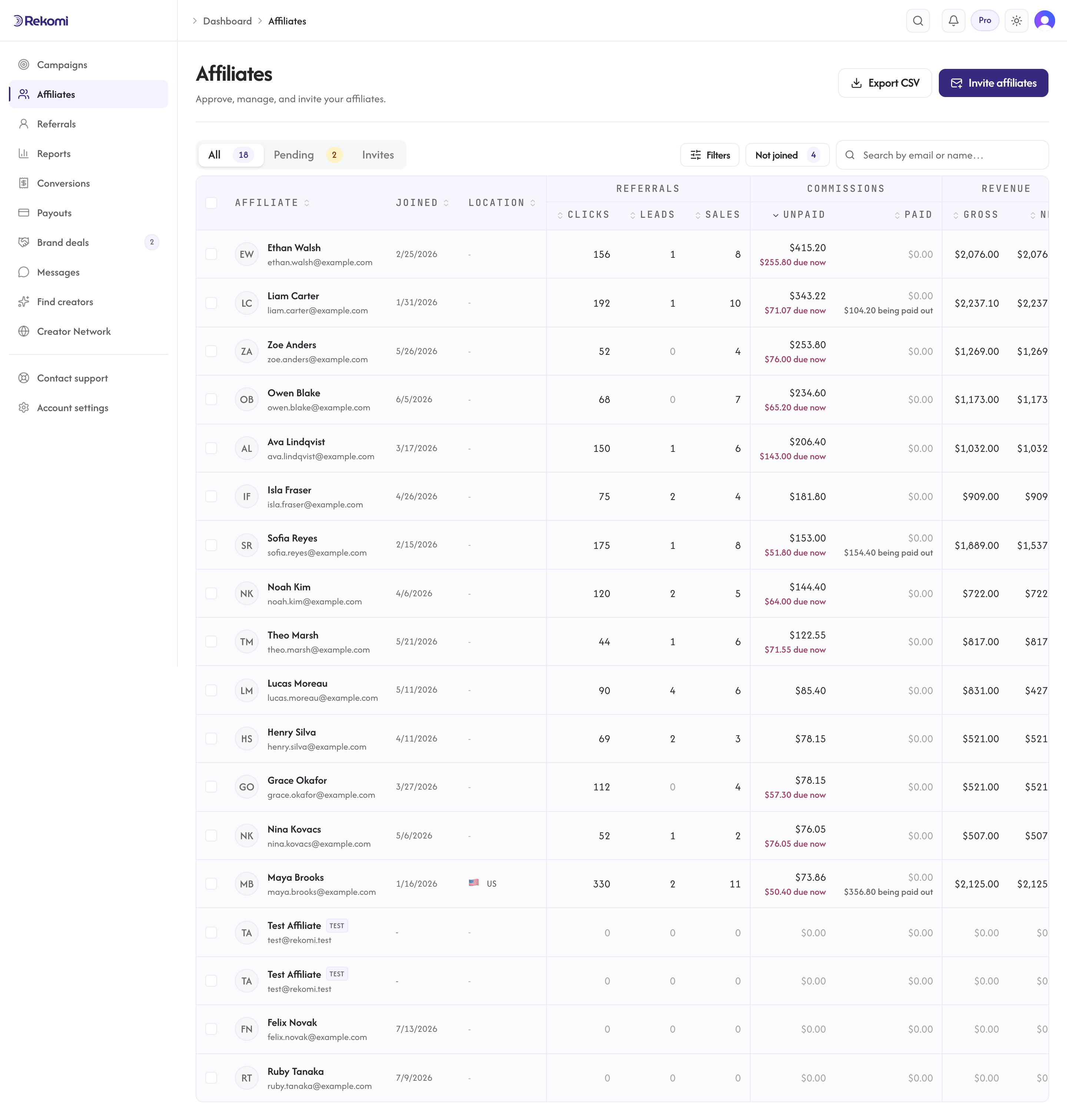
Once applications start coming in, /dashboard/affiliates is where you live. Three top-level tabs: All, Pending, and Invites.
Pending tab
The Pending tab shows everyone with Status = Pending. For each row you see:
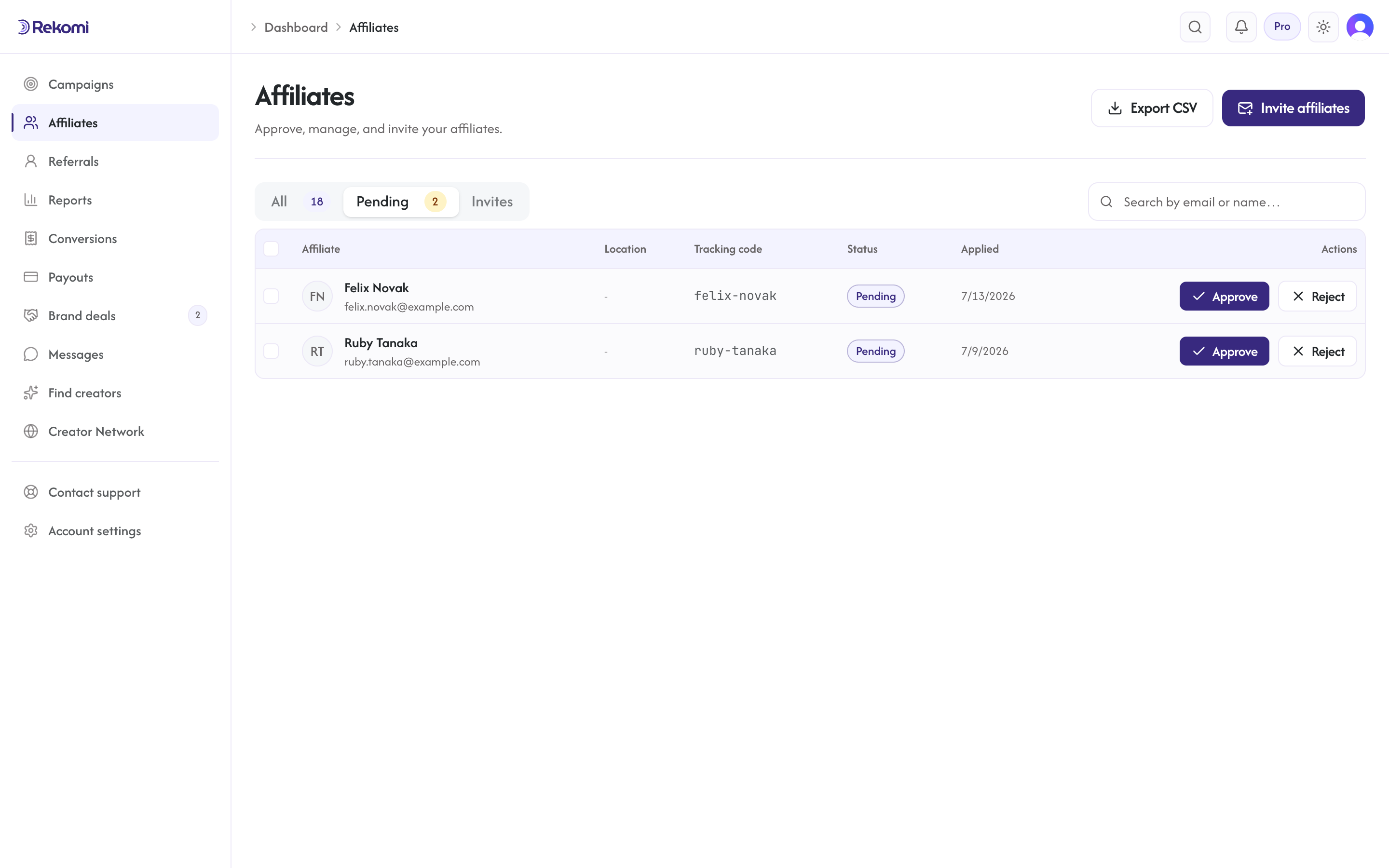
- The applicant's name and email
- Their assigned tracking slug
- When they applied
Click through to the affiliate's detail page and use the View application button in the header to read their full answers (website, audience, why they're interested).
Two actions on each row:
- Approve: moves them to
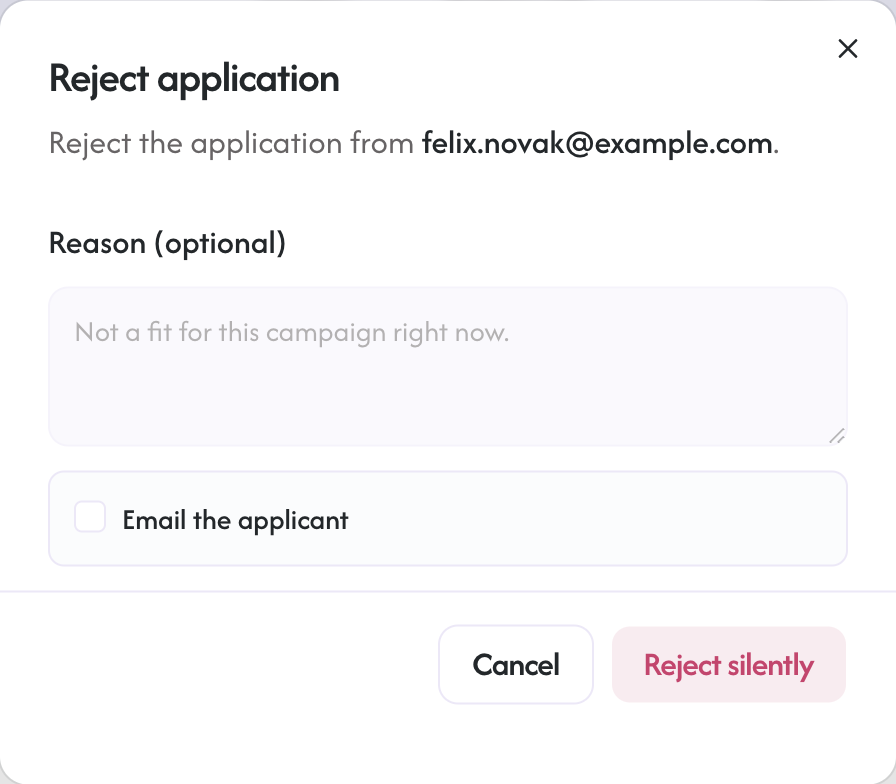
Approvedand sends an approval email (templateapplication_approved); their tracking slug was assigned when they applied. The email includes a single-use "Get your link" button that signs the affiliate straight into/awith no signup form. The magic-link expires in 14 days. - Reject: opens a confirmation dialog. Optionally include a reason and choose whether to notify the applicant. Notify is on by default; uncheck for spam or abusive applicants where a reply would invite retry. The email template (when notify is on) is
application_rejected. The audit log captures both the notify decision and the reason regardless of choice, so silent rejections are still fully traceable.
If your campaign has autoApprove = true, you will rarely see this tab populated. Applications skip Pending and land directly in Approved.
All tab
Lists every affiliate in every campaign on your account, searchable by name or email. Each row:
- Affiliate (name + email)
- When they joined
- Referrals (clicks, leads, conversions)
- Commissions (unpaid and paid)
- Revenue (gross and net)
- Status (Pending, Approved, Paused, Rejected, or Banned). Approved affiliates who have not signed in yet show as "Invited"; once they claim their account the badge reads "Active".
Copy an affiliate's slug from the row menu. Click any row to open the affiliate detail.
Affiliate detail
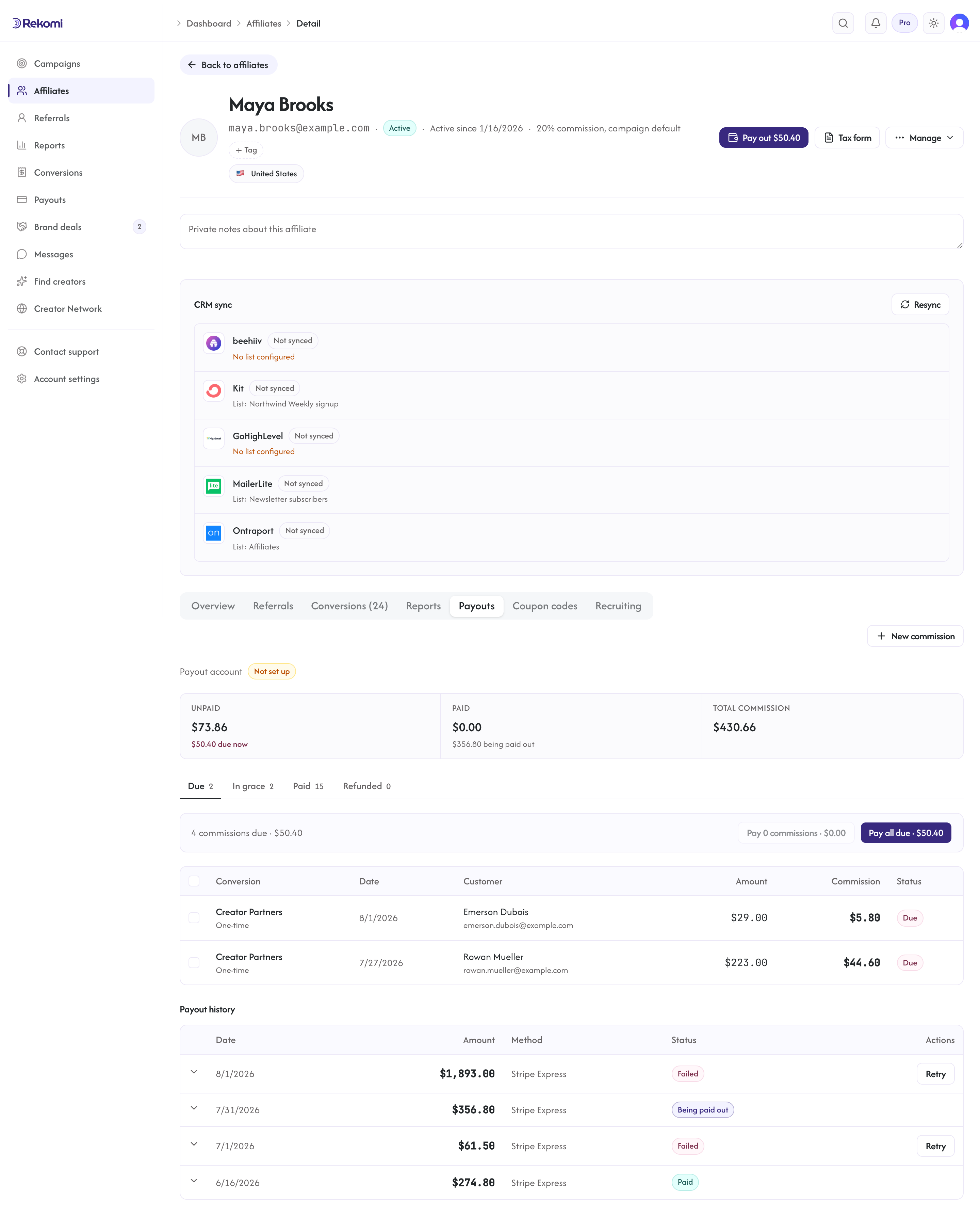
When the affiliate has a payout due, a Pay out button with the amount appears in the header; it opens the payout dialog with them pre-selected (see Per-affiliate payouts).
Per-affiliate view shows their full conversion history (sales, leads and clicks), their custom commission (if any), their tracking link, and admin actions:
- Pause: temporarily stop crediting them. Their existing pending conversions stay; no new ones are credited. Use this for affiliates you want to revisit later.
- Ban: permanently stop new conversions from attributing to them and lock them out of the affiliate dashboard. Their links still take visitors to your site (they point at your site directly), but no new commissions accrue. Commissions already earned pay out on schedule.
- Remove from campaigns: take them off your roster entirely. This deletes the affiliate record and its pending history, so prefer Ban when you want the paper trail.
- Set custom commission: override the campaign default and any tier match. Useful for negotiated deals with top creators.
- New commission: the button on the Payouts tab opens the Add sale or bonus dialog with this affiliate preselected, to record a sale that happened outside your connected billing or give a one-off bonus commission. Rekomi computes the commission from the campaign's rules unless you override it. See How sales are created.
- Rename their tracking code: the Tracking card shows the affiliate's link for this campaign, and the pencil lets you change its code (3 to 64 letters, numbers, or dashes). The old code is kept as an extra link, so everything the affiliate already shared keeps working. The affiliate's account-level code is theirs alone; only they can change that one.
The detail view opens on the Payouts tab, where you manage everything money: what they're owed, their Due, In grace, and Paid commissions, and the ability to mark selected commissions as paid or pay all due in one click, plus their full payout history. See Per-affiliate payouts.
Status flow
Pending  →  Approved  →  Paused  →  Approved
   ↓           ↓
Rejected     Banned
Pending is the initial state for applications when autoApprove = false. Approved is the working state. Paused is a soft hold. Banned permanently stops new attribution. Rejected means the application never got off the ground.
Tax form prompts
If the payments you make to a U.S.-based affiliate reach the IRS reporting threshold in a calendar year ($2,000 for payments made in 2026 onward), the IRS requires you to file a 1099-NEC; the threshold counts payments made during the year, not commissions earned. When you pay through Stripe, affiliates provide their tax details (W-9 for U.S. affiliates, W-8BEN or W-8BEN-E for non-U.S.) directly during Stripe payout onboarding, and Stripe collects and holds those forms. Affiliates on PayPal or bank deposit upload a W-8 to Rekomi instead.
See Tax forms for the full compliance flow.
Bulk operations
Bulk operations work from both the dashboard and the API. The affiliates table at /dashboard/affiliates has row-level checkboxes; once you select one or more rows, a toolbar appears with Approve, Pause, and Delete actions. Bulk actions require the Owner role and fan out to /api/affiliates/bulk-action, capped at 200 affiliates per request so large batches stay fast; send several requests for bigger rosters.
Notifications affiliates receive
Rekomi sends affiliates a full catalog of automated lifecycle emails on your behalf: the application-received confirmation, the welcome email when you approve (which carries their tracking link and the "Get your link" button), and payout notices when money starts moving and when it arrives, among others. Each email has a switch on the campaign's Emails tab (a campaign follows your account-wide defaults until you flip a switch there); a few opt-in ones (like the commission-earned email) stay off until you enable them. See Emails for the full list.
All of these go through Resend with DKIM-signed delivery from mail.rekomi.com, or from your own domain once you set up a custom sending domain.
Sub-affiliate recruiting income
If your campaign has sub-affiliate recruiting enabled, override income shows up on the recruiter's affiliate-detail view as a separate line per sale. Override rows have amountCents = 0 and a positive commissionCents, with attributionMethod = "sub_affiliate_override". Refunds on the parent sale proportionally claw back the override automatically. Override income counts toward the recruiter's 1099-NEC threshold.